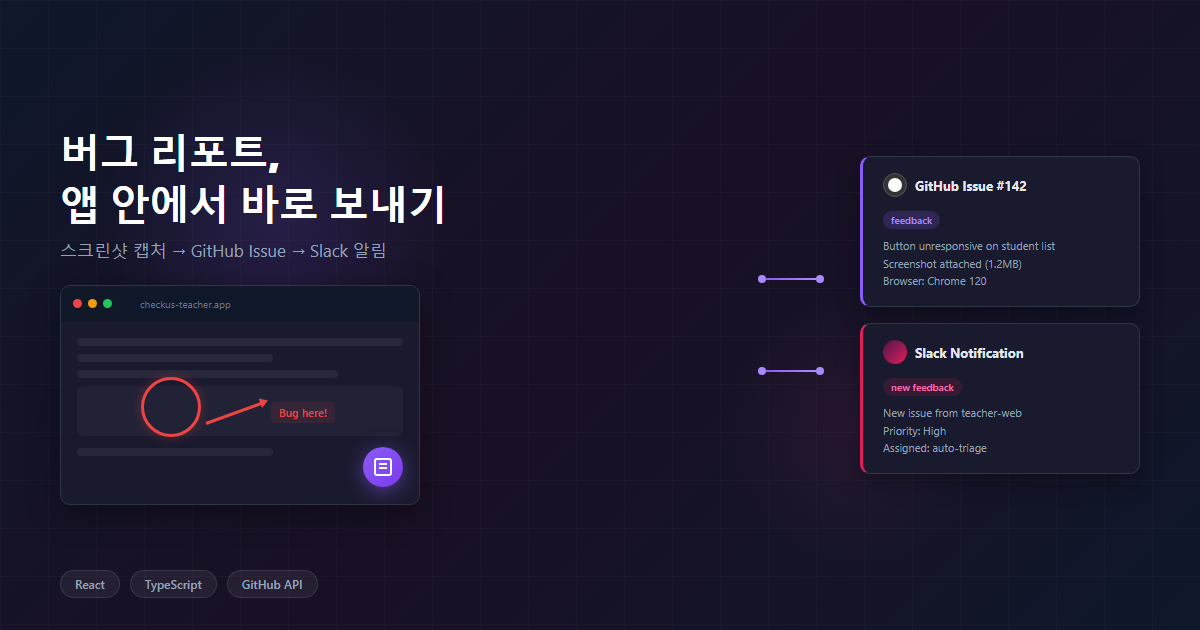
The Problem: Bug Reports Come via KakaoTalk
I run a hakwon (Korean private academy/tutoring center) attendance management system as a solo developer. Teachers and parents use the app daily, but there are limits to how much one person can test. When bugs surface during real usage, the reports come in through KakaoTalk (Korea’s dominant messaging app) or phone calls.
“Something doesn’t work on that screen.”
Which screen, what they were doing when it happened, what state they were in — all the context is missing. Sometimes screenshots do come through, but they are photos of a computer monitor taken with a phone. Low resolution aside, moire patterns overlap and make the text unreadable.
Then the reverse engineering begins. “Which page was that?” “What account were you logged in with?” “Are you using Chrome?” — a few rounds of questions and the day is gone.
The pattern kept repeating: reproducing the bug took longer than fixing it.
I knew paid feedback tools like Ybug.io and Usersnap existed. But they cost tens of dollars a month, don’t integrate directly with GitHub Issues, and don’t offer a pipeline that flows all the way to resolution notifications. What I needed was exactly “screenshot + context -> GitHub Issue -> Slack notification on resolution.”
The Solution: In-App Feedback Widget (F278)
I built a widget that lets users take a screenshot right inside the app, draw on it to mark what’s wrong, add a note, and submit it — which creates a GitHub Issue automatically.
A purple floating button appears in the bottom-right corner, but only in development/test environments. Tapping it triggers the browser to request tab capture permission, and once granted, the view switches to annotation mode.
The flow has four stages:
- idle — floating button on standby
- capturing — capturing the browser tab via the Display Media API
- annotating — drawing on the captured image + writing a note
- submitting — uploading the screenshot to GitHub + creating an Issue
Managing this as a state machine keeps the UI transitions between stages clean.
type WidgetState = 'idle' | 'capturing' | 'annotating' | 'submitting';
Why I Chose the Display Media API
I initially considered html2canvas. Since it converts the DOM to a canvas, it can capture without user consent — which seemed like a better UX. But applying it to a real app surfaces plenty of issues.
- cross-origin iframe — embedding external services via iframe results in a tainted canvas
- canvas/WebGL elements — canvases rendered by chart libraries appear blank
- CSS compatibility — modern CSS like backdrop-filter and clip-path gets ignored or breaks
- Performance — on pages with complex DOM, capture takes several seconds
navigator.mediaDevices.getDisplayMedia() captures exactly what the browser has actually rendered. A tab selection dialog does appear for the user, but accurate capture is guaranteed. With the preferCurrentTab: true option, the current tab is pre-selected, so it only takes a single click.
const stream = await navigator.mediaDevices.getDisplayMedia({
  video: { displaySurface: 'browser' } as MediaTrackConstraints,
  audio: false,
  preferCurrentTab: true,
} as DisplayMediaStreamOptions);

const track = stream.getVideoTracks()[0];
const video = document.createElement('video');
video.srcObject = stream;
video.muted = true;
await video.play();

const canvas = document.createElement('canvas');
canvas.width = video.videoWidth;
canvas.height = video.videoHeight;
canvas.getContext('2d')!.drawImage(video, 0, 0);

track.stop();
A single frame is extracted from the video track, then the stream is immediately terminated with track.stop(). The capture indicator (red border, “sharing” badge) flickers briefly and disappears.
Annotation Canvas: Unified with Pointer Events
Users need to be able to draw directly on the captured image. There are three tools — freehand, rectangle, and arrow. Three colors — red, blue, and black.
To support both mouse and touch simultaneously, I used the Pointer Events API. No need to handle mousedown/touchstart separately.
const handlePointerDown = (e: React.PointerEvent) => {
  e.preventDefault();
  (e.target as HTMLElement).setPointerCapture(e.pointerId);
  setIsDrawing(true);
  const point = getCanvasPoint(e);
  setCurrentStroke({ tool, color, points: [point] });
};
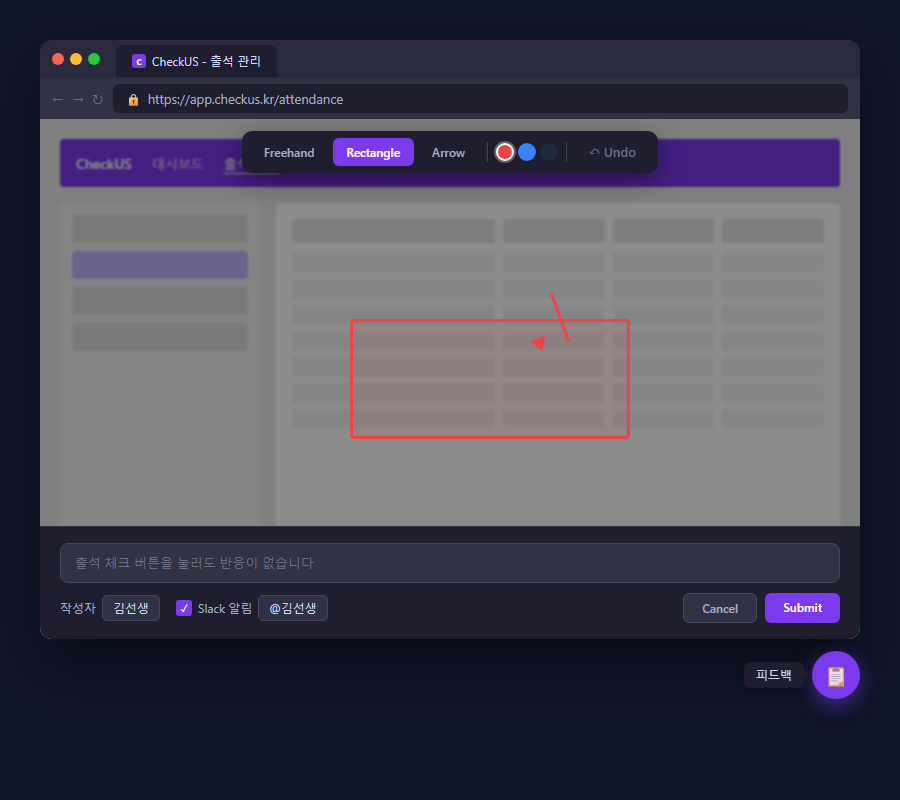
setPointerCapture is the key. Once called, events continue to be dispatched to that element even when the pointer leaves the canvas. Drawing doesn’t break when the mouse moves outside the canvas boundary during a drag.
Canvas Redraw Strategy
Drawing state is managed as React state.
strokes— an array of finalized strokescurrentStroke— the stroke currently in progress
A useEffect redraws the entire canvas on every change: background image + finalized strokes + current stroke.
useEffect(() => {
  const ctx = canvas.getContext('2d')!;
  ctx.drawImage(backgroundImage, 0, 0, canvas.width, canvas.height);

  for (const stroke of strokes) {
    drawStroke(ctx, stroke);
  }

  if (currentStroke) {
    drawStroke(ctx, currentStroke);
  }
}, [backgroundImage, strokes, currentStroke]);
Redrawing everything each time might seem inefficient, but in practice we are just drawing a few shapes on top of a single screenshot — no performance issues. In fact, this approach makes Undo (Ctrl+Z) trivial: just remove the last element from the strokes array and the previous state is restored.
How Screenshots Are Stored on GitHub
Can you embed base64 images in a GitHub Issue body? No. The Issue body has a 65KB size limit, and a single screenshot is typically several hundred KB.
Instead, the screenshot file is committed directly to the repository via the GitHub Contents API.
async function uploadScreenshot(config: DevFeedbackConfig, blob: Blob): Promise<string> {
  const base64Content = await blobToRawBase64(blob);
  const filename = `feedback-screenshots/${Date.now()}.jpg`;

  await githubFetch(
    `https://api.github.com/repos/${config.githubRepo}/contents/${filename}`,
    config.githubToken,
    {
      method: 'PUT',
      headers: { 'Content-Type': 'application/json' },
      body: JSON.stringify({
        message: `[feedback] screenshot ${new Date().toISOString()}`,
        content: base64Content,
      }),
    },
  );

  return `https://github.com/${config.githubRepo}/blob/main/${filename}?raw=true`;
}
JPEG files accumulate under the feedback-screenshots/ directory with timestamp-based names. Before uploading, images are resized to 1280px wide or less and compressed at 80% JPEG quality to keep file sizes down.
The return value uses a blob URL with the ?raw=true parameter. Using download_url would include a temporary token that causes the image to break after a while.
Issue Body Structure: Designed for Regex Parsing
The Issue body needs to be parsed later by GitHub Actions, so it is written in a structured format.
## Feedback
출석 체크 화면에서 시간표가 안 보입니다
## Screenshot

## Context
- **Author**: 김선생
- **Account**: teacher01 (T001)
- **Slack**: @김선생
- **URL**: https://app.checkus.kr/attendance
- **Browser**: Mozilla/5.0 ...
- **Viewport**: 1920x1080
- **Timestamp**: 2026-03-31T09:30:00.000Z
- **App**: teacher-web
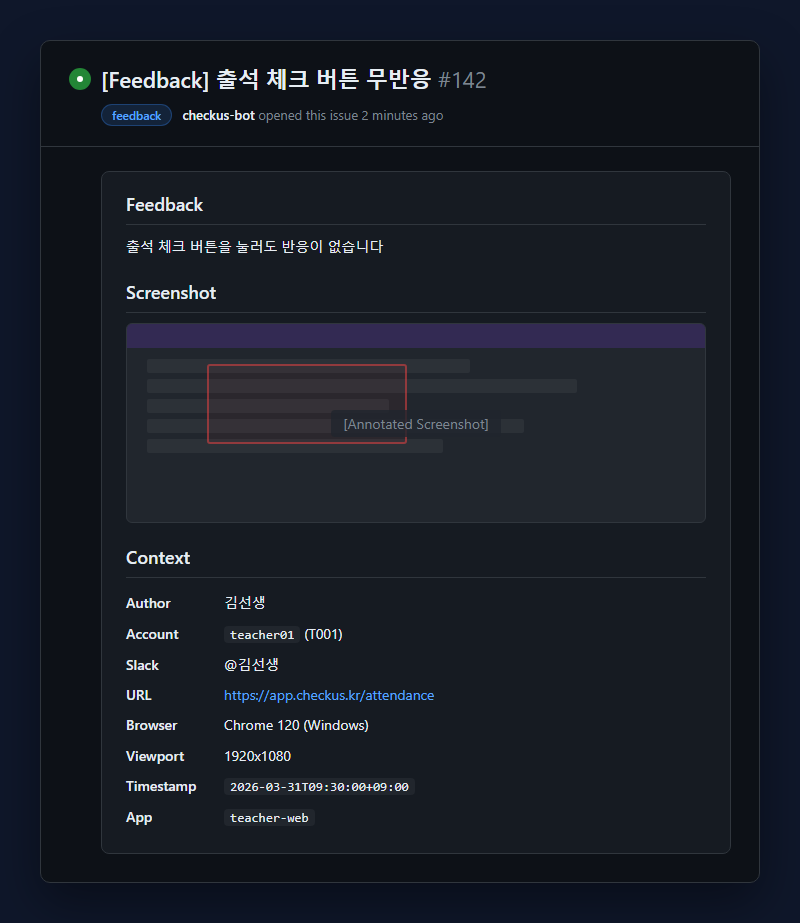
All metadata follows the **Key**: Value pattern, so it can be extracted with a single regex.
m = re.search(r'\*\*Author\*\*: (.+)', body)
author = m.group(1).strip() if m else "Unknown"
Closing an Issue Sends a Slack Notification
Submitting feedback alone is only half the story. The person who reported it needs to know “has my feedback been addressed?” for the feedback loop to be complete.
I set up a single GitHub Actions workflow. It triggers when an issue with the feedback label is closed.
on:
  issues:
    types: [closed]

jobs:
  notify:
    if: contains(github.event.issue.labels.*.name, 'feedback')
    runs-on: ubuntu-latest
What the workflow does:
- Extracts Author, Slack nickname, and submission time from the Issue body using regex
- Fetches the last comment on the issue to use as the resolution summary
- Calls the Slack
users.listAPI with a Bot Token to find the Slack user ID matching the nickname - Sends a notification with a mention via Webhook
Slack user matching compares three fields: display_name, real_name, and username.
for member in users.get("members", []):
    p = member.get("profile", {})
    dn = p.get("display_name", "")
    rn = p.get("real_name", "")
    un = member.get("name", "")
    if slack_nick in (dn, rn, un):
        mention = f"\n👋 <@{member['id']}>"
        break
The final Slack message looks like this:
03/31 09:30 👋 @김선생님이 리포트한 피드백이 해결되었습니다.
내용: 출석 체크 화면에서 시간표가 안 보입니다
로그인 계정: teacher01 (T001)

해결 내용:
시간표 쿼리에서 날짜 필터 조건이 빠져 있었습니다. 수정 완료.
링크: https://github.com/.../issues/42
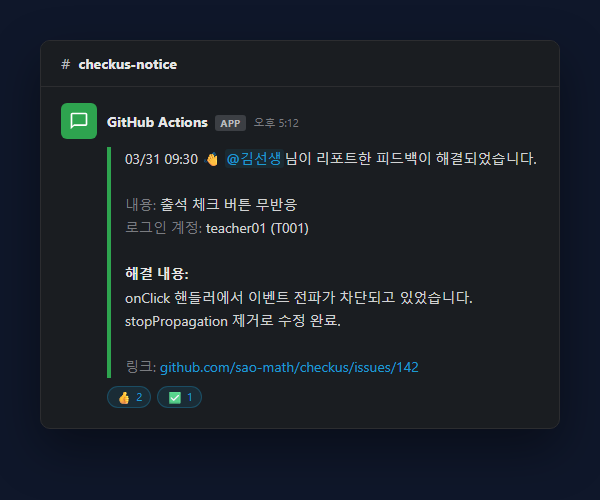
From the reporter’s perspective, there is no need to go check GitHub separately. A single Slack notification tells them “it’s been fixed” and that’s it.
End-to-End Flow
사용자가 버그 발견
    |
    v
플로팅 버튼 클릭
    |
    v
Display Media API → 브라우저 탭 캡처
    |
    v
어노테이션 캔버스 (그리기 + 메모)
    |
    v
Submit 클릭
    |
    +→ GitHub Contents API: 스크린샷 파일 커밋
    |
    +→ GitHub Issues API: 이슈 생성 (feedback 라벨)
    |
    v
개발자가 버그 수정 → 이슈 닫기 (코멘트에 해결 내용)
    |
    v
GitHub Actions 트리거 (issues.closed + feedback 라벨)
    |
    v
Python 스크립트: Issue body 파싱 → Slack user lookup
    |
    v
Slack Webhook → 리포터에게 멘션 알림
Component Structure
DevFeedback/
├── DevFeedbackWidget.tsx   # 상태 머신 (idle → capturing → annotating → submitting)
├── ScreenCapture.ts        # Display Media API 래퍼
├── DrawingCanvas.tsx        # 어노테이션 캔버스 (Pointer Events + Canvas 2D)
├── FeedbackSender.ts        # GitHub API 호출 (스크린샷 업로드 + Issue 생성)
└── types.ts                 # 공유 타입 (DrawingTool, FeedbackPayload, FeedbackContext)
The feature is split across five files. Each file has a single responsibility and knows nothing about the others’ internals. DevFeedbackWidget acts as the orchestrator, composing the rest.
Results
The difference before and after is stark.
Before: “Something doesn’t work somewhere” -> 3-4 rounds of reverse-engineering questions -> reproduction attempt -> fix -> “Fixed it” via KakaoTalk
After: An accurate screenshot (with URL, browser, viewport) + annotations + notes are automatically created as a GitHub Issue -> fix the bug and close the issue -> Slack notification sent to the reporter automatically
There are exactly two things the developer does manually: fix the bug, and close the issue. Everything else — gathering context, organizing the report, notifying about the resolution — is fully automated.
For now, the widget is only enabled in development/test environments. Whether to extend it to production is something I will decide after observing usage patterns further. The widget itself is a single React component, so it could eventually be extracted into an npm package and reused in other projects.
Comments