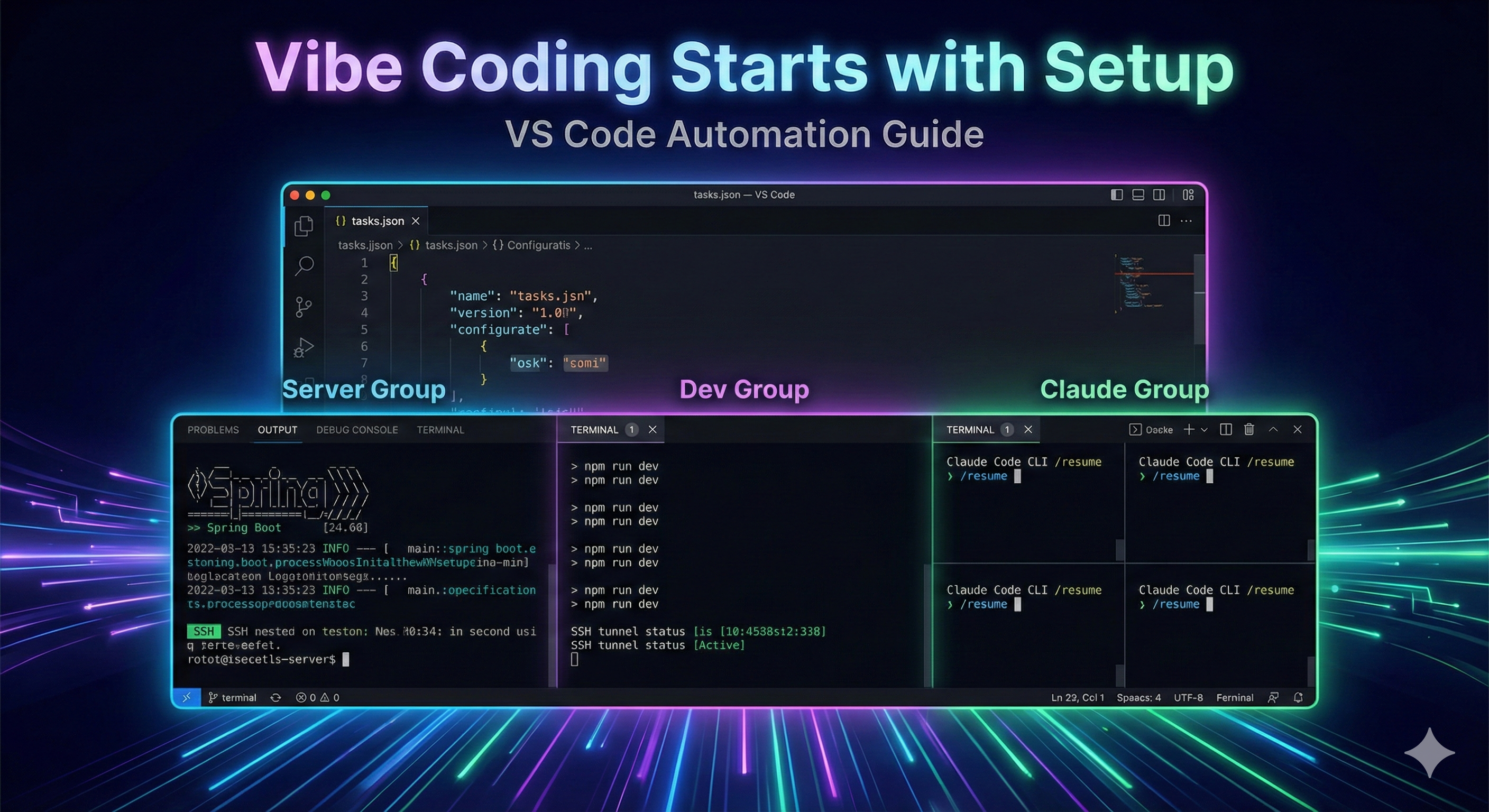
Here’s my daily dev routine.
Open VS Code, start an SSH tunnel, launch the backend server, run npm run dev for two frontends, and spin up 4 Claude Code instances. 9 terminals. All manual, every single time.
This isn’t a VS Code Tasks tutorial. It’s a record of automating a real vibe coding setup.
One tasks.json file makes everything launch the moment VS Code opens.
Why 9 Terminals
The project I work on is a full-stack monorepo.
my-project/
├── server/        # Spring Boot (Java 21)
├── web-app/       # React (Vite + TS)
├── mobile-app/    # React (Vite + TS)
└── infra/         # Docker
Starting development requires at least 4 processes: an SSH tunnel for DB access, the backend server, and 2 frontends.
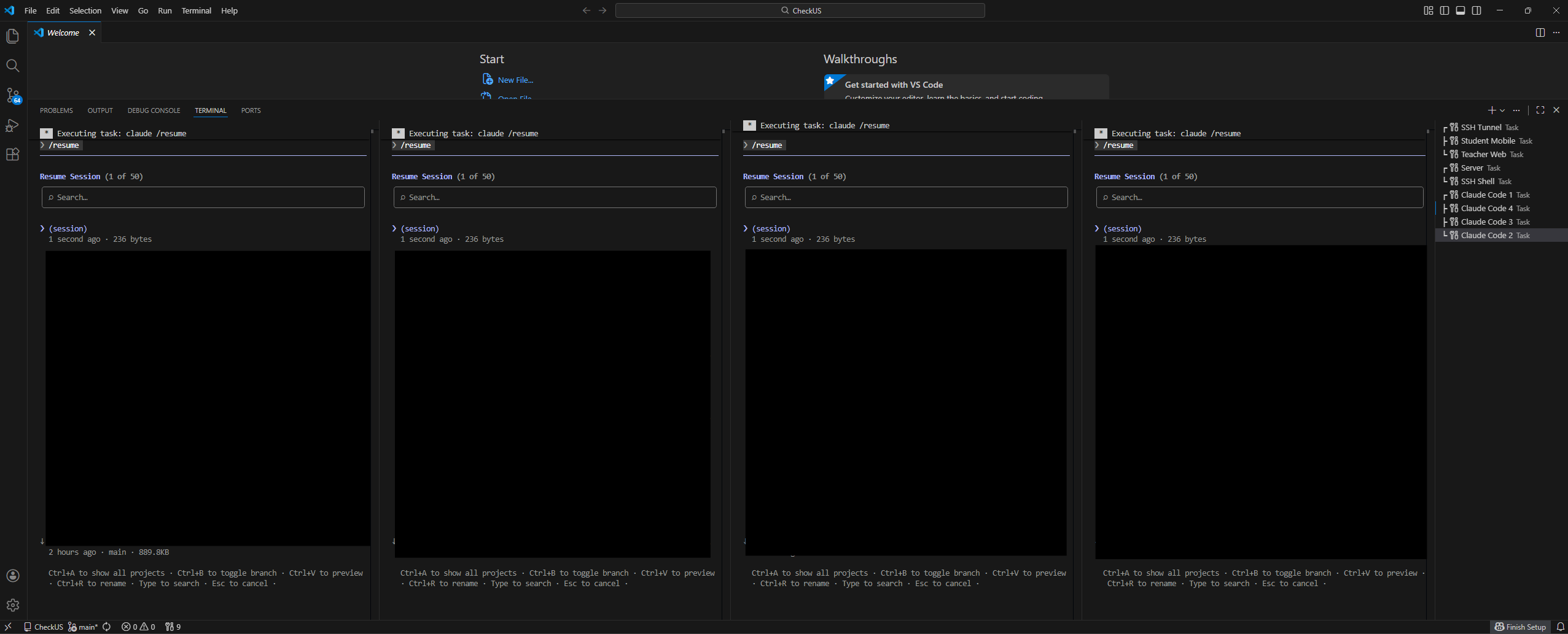
Then comes the vibe coding setup. I run 4 Claude Code instances in parallel — main task, research, tests, and review. Especially useful when working on both server and frontend simultaneously in a monorepo.
That adds up to 9 terminals. Opening each one manually every time VS Code starts is a waste.
Automation: tasks.json + folderOpen
VS Code has a built-in task automation feature via .vscode/tasks.json. It’s usually used for build or lint commands triggered by shortcuts, but adding runOn: "folderOpen" makes tasks run automatically when the project opens.
{
  "label": "Web App",
  "type": "shell",
  "command": "npm",
  "args": ["run", "dev"],
  "options": {
    "cwd": "${workspaceFolder}/web-app"
  },
  "isBackground": true,
  "problemMatcher": [],
  "presentation": {
    "label": "Web App",
    "group": "dev",
    "reveal": "silent"
  },
  "runOptions": {
    "runOn": "folderOpen"
  }
}
Repeat this pattern for all 9 tasks. Three key options:
runOn: "folderOpen"— auto-run when VS Code opensisBackground: true— background process that doesn’t blockpresentation.group— split terminals by group
Tasks with the same presentation.group are split within a single terminal panel. This lets you group terminals by role.
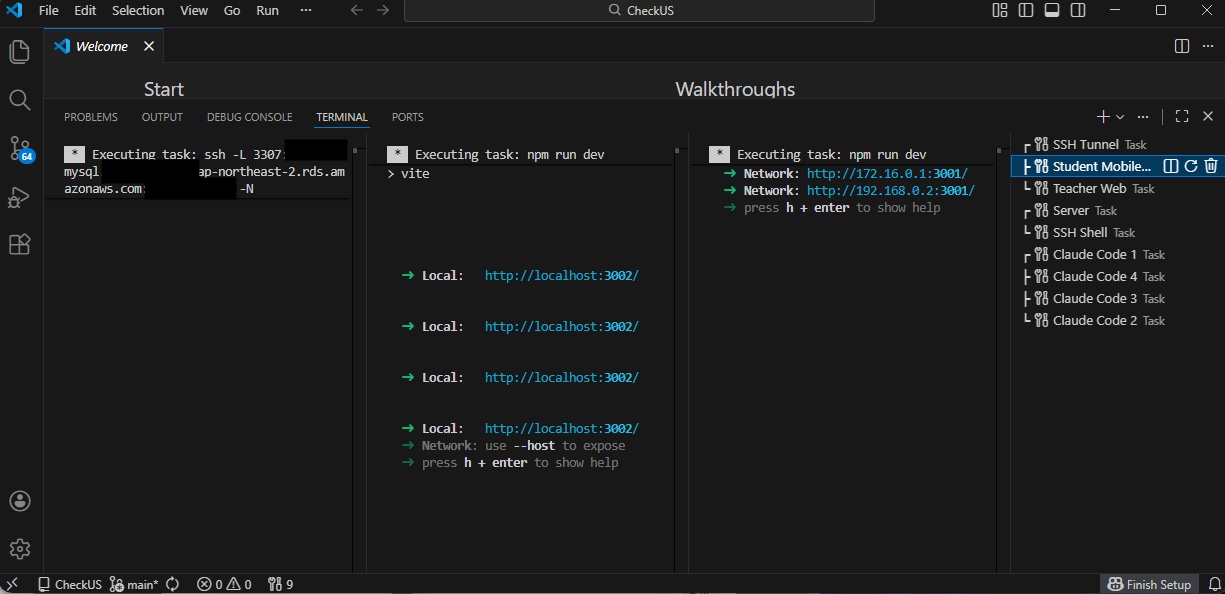
┌─────────────────────────────────────────┐
│ Server Group                            │
│ ┌──────────────────┬──────────────────┐ │
│ │ Spring Boot      │ SSH Shell        │ │
│ └──────────────────┴──────────────────┘ │
├─────────────────────────────────────────┤
│ Dev Group                               │
│ ┌────────┬─────────────┬──────────────┐ │
│ │SSH Tun.│  Web App    │ Mobile App   │ │
│ └────────┴─────────────┴──────────────┘ │
├─────────────────────────────────────────┤
│ Claude Group                            │
│ ┌────────┬────────┬────────┬──────────┐ │
│ │Claude 1│Claude 2│Claude 3│ Claude 4 │ │
│ └────────┴────────┴────────┴──────────┘ │
└─────────────────────────────────────────┘
Terminals you check often, like server logs, go in their own group. Things you just leave running, like Claude Code, get reveal: "silent" to stay in the background.
Auto-Launching 4 Claude Code Instances
This is the core of the setup.
I started with the VS Code extension for Claude Code. The problem is that when you can open unlimited windows, you will open unlimited windows. At one point I had 16 running simultaneously. The result was counterproductive — context was scattered everywhere, and I couldn’t track what I’d assigned where.
So I switched to the terminal-based CLI and fixed it at 4. Terminals only spawn as many as tasks.json defines, so the constraint is physical. To start something new, you have to finish what’s running. An intentional limitation.
The 4 instances roughly map to:
- Main task
- Research / exploration
- Test execution
- Review / documentation
{
  "label": "Claude Code 1",
  "type": "shell",
  "command": "claude",
  "args": ["/resume"],
  "isBackground": true,
  "problemMatcher": [],
  "presentation": {
    "label": "Claude 1",
    "group": "claude",
    "reveal": "always"
  },
  "runOptions": {
    "runOn": "folderOpen"
  }
}
Create 4 of these tasks, all with "group": "claude", and they appear as a 4-way split terminal.
args: ["/resume"] is the key. Claude Code CLI takes the first argument as an initial prompt, so /resume automatically restores the previous session when VS Code opens. You pick up right where you left off yesterday.
Gotcha 1: PowerShell -Command Conflict
The setup itself is simple. The debugging wasn’t.
I had this PowerShell profile for UTF-8 encoding on Windows:
// settings.json
"terminal.integrated.profiles.windows": {
    "PowerShell (UTF-8)": {
        "source": "PowerShell",
        "args": ["-NoExit", "-Command", "chcp 65001 > $null"]
    }
},
"terminal.integrated.defaultProfile.windows": "PowerShell (UTF-8)"
With this in place, every task fails with:
The parameter format is incorrect - -Command
The cause is straightforward. When VS Code runs a "type": "shell" task, it takes the default profile’s args, then appends another -Command to execute the task command. The result:
powershell.exe -NoExit -Command "chcp 65001 > $null" -Command "npm run dev"
PowerShell can’t accept -Command twice. It tries to interpret everything after the first -Command as a single command and fails.
The fix is one line.
"terminal.integrated.automationProfile.windows": {
    "path": "powershell.exe"
}
Setting automationProfile makes tasks use this profile instead of the default. Interactive terminals get the UTF-8 profile, task terminals get a clean PowerShell. Roles are separated.
Gotcha 2: type: "process" vs type: "shell"
I initially set the Claude Code tasks to "type": "process", and got the same -Command error.
"type": "process" does not use automationProfile. It goes through the default profile’s shell, so the -Command conflict persists.
Switching to "type": "shell" applies automationProfile. This isn’t well-documented, and it took some time to figure out.
Final Configuration
| Group | Tasks | Role |
|---|---|---|
server |
Server, SSH Shell | Server logs + remote shell |
dev |
SSH Tunnel, Web App, Mobile App | Infra + frontends |
claude |
Claude 1–4 | AI parallel development |
9 tasks, 3 groups, ~160 lines.
The moment VS Code opens, development begins. That’s the whole point of the setup.
Comments