TL;DR
Processed BizGo API’s “A000” response as delivery success, but no alimtalk messages were actually delivered for a month. A000 means “request accepted”, not “delivered”. Solved by tracking actual results via Webhook.
Background: API Response = Delivery Success?
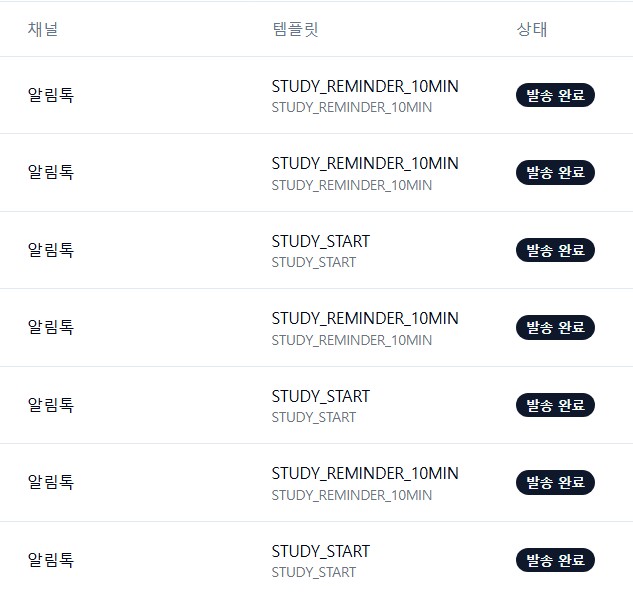
Our system’s notification history screen. Everything showed “Delivery Complete”:
The existing code worked like this:
ResponseEntity<String> response = restTemplate.postForEntity(url, entity, String.class);

if (response.getStatusCode() == HttpStatus.OK) {
    JsonNode responseJson = objectMapper.readTree(response.getBody());
    String code = responseJson.path("code").asText();

    if ("A000".equals(code)) {
        // Save as SUCCESS
        notification.setStatus(NotificationStatus.SUCCESS);
        return true;
    }
}
Seemed reasonable? Turns out, no.
“The A000 code only signals that the message request was ‘successfully accepted’ by the BizGo system, it doesn’t guarantee the message arrived on the customer’s phone.” — BizGo Blog
Problem Discovery: One Month Later
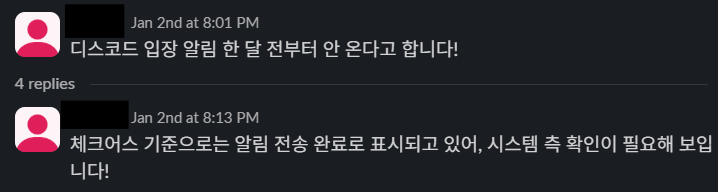
After receiving an error report via Slack, I remembered a previous auto-payment issue causing overdue charges. Checking the BizGo console revealed our account was suspended.
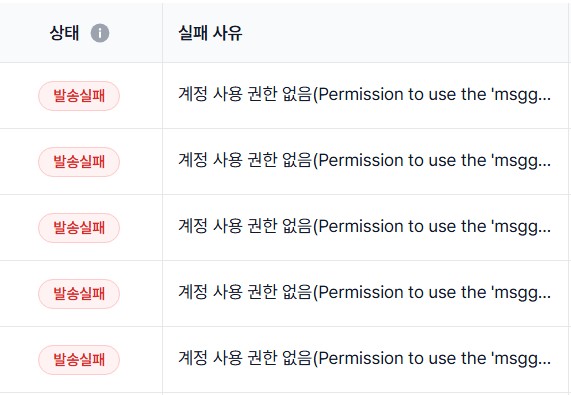
reportCode: 64008
resultMsg: No account usage permission
But since the API response continued to be A000 (success), our system had no way of knowing.
Key failure codes:
10000: Success (arrived at device)64008: No account usage permission64016: Non-KakaoTalk user22000: Transmission timeout
Solution: Track Actual Results via Webhook
BizGo sends delivery results via Webhook. Changed to receive and update actual status.
How to Register Webhook
Struggled to find the Webhook URL registration menu in BizGo admin console.
Initially requested via email to support:
Inquiry
Hello,
I’d like to register a URL to receive alimtalk delivery reports via Webhook.
- Webhook URL: https://api.checkus.app/webhook/bizgo/alimtalk
- Method: POST
- Content-Type: application/json
After registration, the support representative called to explain how to verify:
1. Access Integration Management Menu
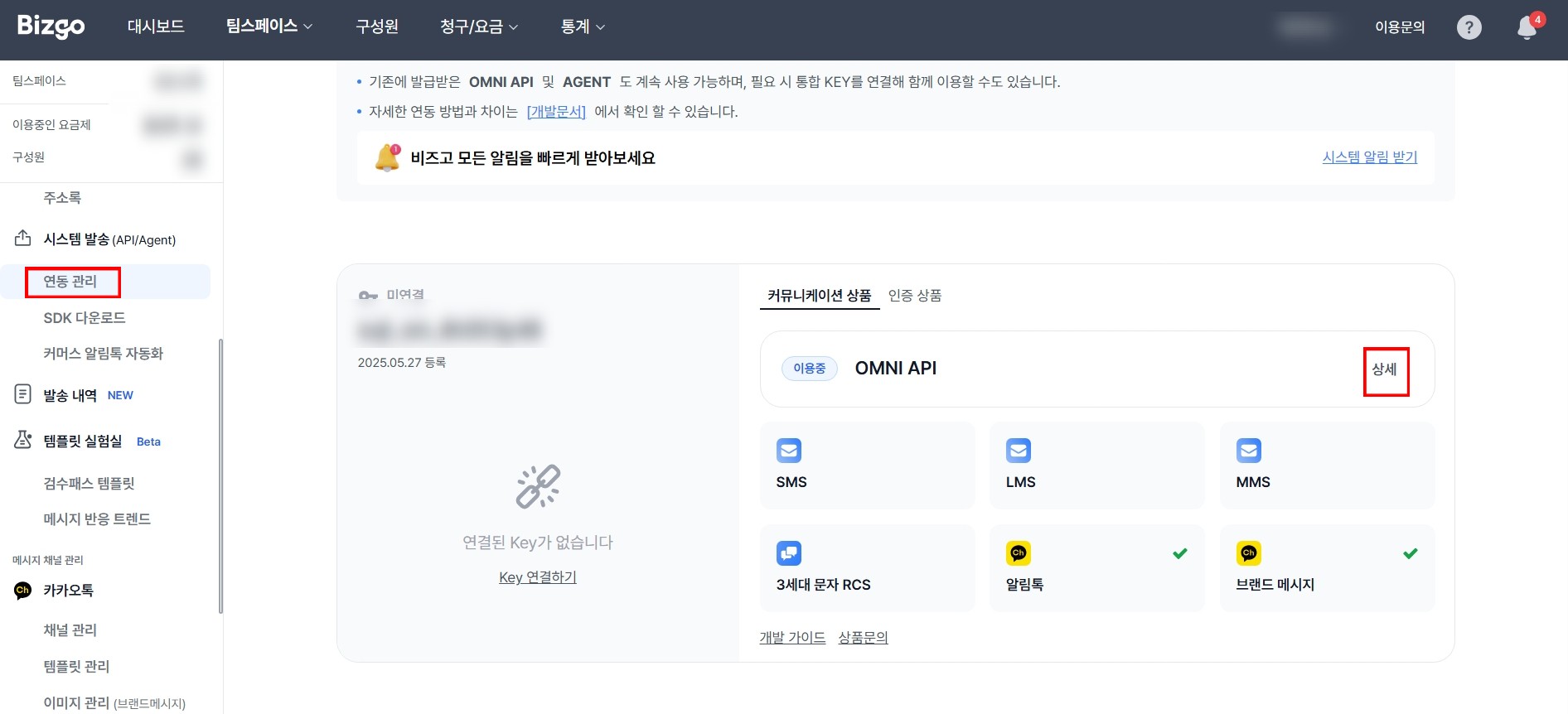
Click “Integration Management” in the left menu. To see details, click the “Details” button for each item.
2. Check Webhook URL in Report Section

In the detail popup, check the “Report” section to verify the registered Webhook URL.
After registration, test with a sample send to confirm Webhook is working properly.
Updated Status Flow
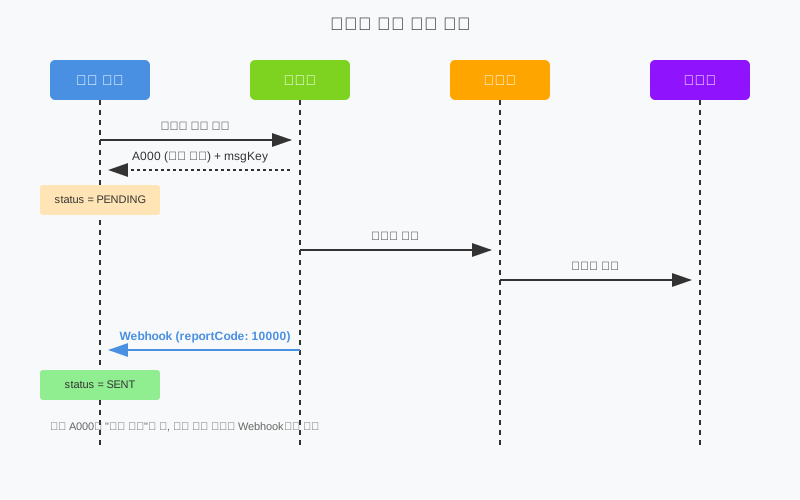
Send Request → API Success(A000) → PENDING (save msgKey)
                        ↓
              Webhook Callback (1-3 seconds)
                        ↓
          reportCode: 10000? → SENT
                        ↓
                    Otherwise → DEAD_LETTER
1. API Request Handler
@PostMapping("/alimtalk/send")
public ResponseEntity<String> sendAlimtalk(@RequestBody AlimtalkRequest request) {
    // BizGo API call
    ResponseEntity<String> response = restTemplate.postForEntity(
        bizgoUrl, entity, String.class
    );

    if (response.getStatusCode() == HttpStatus.OK) {
        JsonNode json = objectMapper.readTree(response.getBody());
        String code = json.path("code").asText();
        String msgKey = json.path("msgKey").asText();  // Important!

        if ("A000".equals(code)) {
            // Save as PENDING, not SUCCESS
            notification.setStatus(NotificationStatus.PENDING);
            notification.setMsgKey(msgKey);  // Save for matching
            notificationRepository.save(notification);
        }
    }
}
2. Webhook Receiver
@RestController
@RequestMapping("/webhook/bizgo")
public class BizgoWebhookController {

    @PostMapping("/alimtalk")
    public ResponseEntity<String> handleAlimtalkReport(
        @RequestBody BizgoReportDto report
    ) {
        String msgKey = report.getMsgKey();
        String reportCode = report.getReportCode();

        // Find notification by msgKey
        Notification notification = notificationRepository
            .findByMsgKey(msgKey)
            .orElseThrow(() -> new NotFoundException("msgKey not found: " + msgKey));

        // Update status based on reportCode
        if ("10000".equals(reportCode)) {
            notification.setStatus(NotificationStatus.SENT);
            notification.setDeliveredAt(LocalDateTime.now());
        } else {
            notification.setStatus(NotificationStatus.DEAD_LETTER);
            notification.setFailureReason(report.getResultMsg());

            // Log for monitoring
            log.error("Alimtalk failed: msgKey={}, code={}, msg={}",
                msgKey, reportCode, report.getResultMsg());
        }

        notificationRepository.save(notification);

        return ResponseEntity.ok("OK");
    }
}
3. Status Tracking
public enum NotificationStatus {
    PENDING,       // API accepted, awaiting result
    SENT,          // Webhook confirmed success (10000)
    DEAD_LETTER    // Webhook confirmed failure
}
Debugging: Webhook Not Coming?
Webhook didn’t arrive after initial setup. Here’s what to check:
- Server Firewall: Is inbound allowed for BizGo IP? (Contact support for IP list)
- HTTPS Certificate: BizGo may not call if certificate is invalid
- Response Speed: Must respond within 5 seconds or BizGo marks as failed
- Response Format: Must return HTTP 200 OK
Test using ngrok for local development:
ngrok http 8080
# Use ngrok URL for Webhook registration
Result
Now we can immediately detect delivery failures:
- PENDING: API request accepted, awaiting result
- SENT: Webhook confirmed success (reportCode: 10000)
- DEAD_LETTER: Webhook confirmed failure
With Webhook working properly, we can now immediately identify failures.
Future improvements could include alerts for DEAD_LETTER cases or dashboard monitoring features.
Lessons Learned
- API Response ≠ Final Result: When integrating external services, understand exactly what response codes mean
- Async Processing Needs Webhooks: Track operations with delayed results via Webhook or polling
- msgKey is Key: Essential identifier for matching API requests with Webhook callbacks
Result: Changed from “believing everything succeeded” to “knowing actual status”
Never trust asynchronous API responses. Track the actual result.
Comments